Tiledesk
Provider site: https://tiledesk.com
Account access: https://console.tiledesk.com/v2/dashboard
Steps
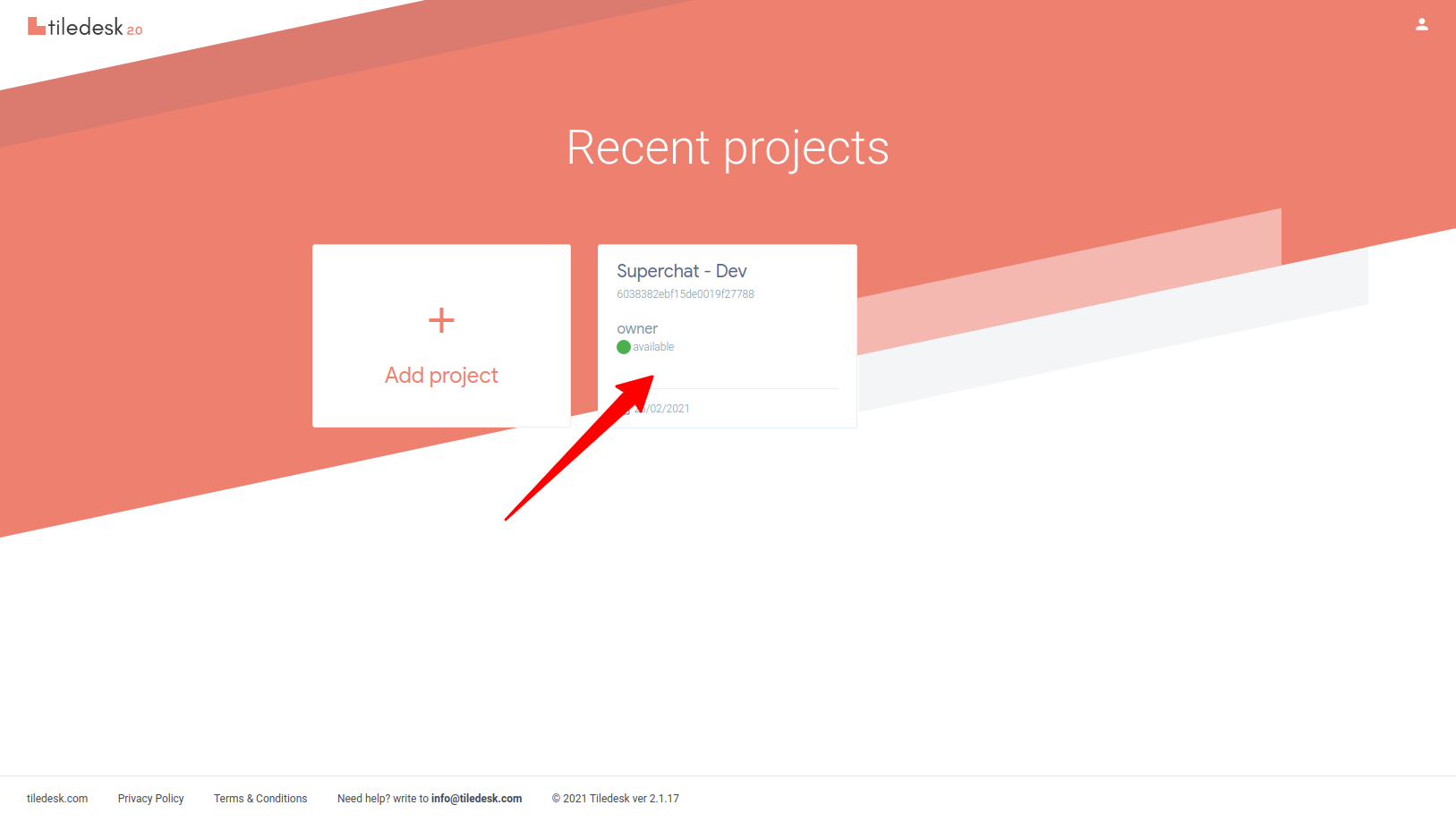
Choose project
- Open https://console.tiledesk.com/v2/dashboard/#/projects and choose the project to be configured.
Find project ID
- Find the
project IDand copy it, you will need this information later.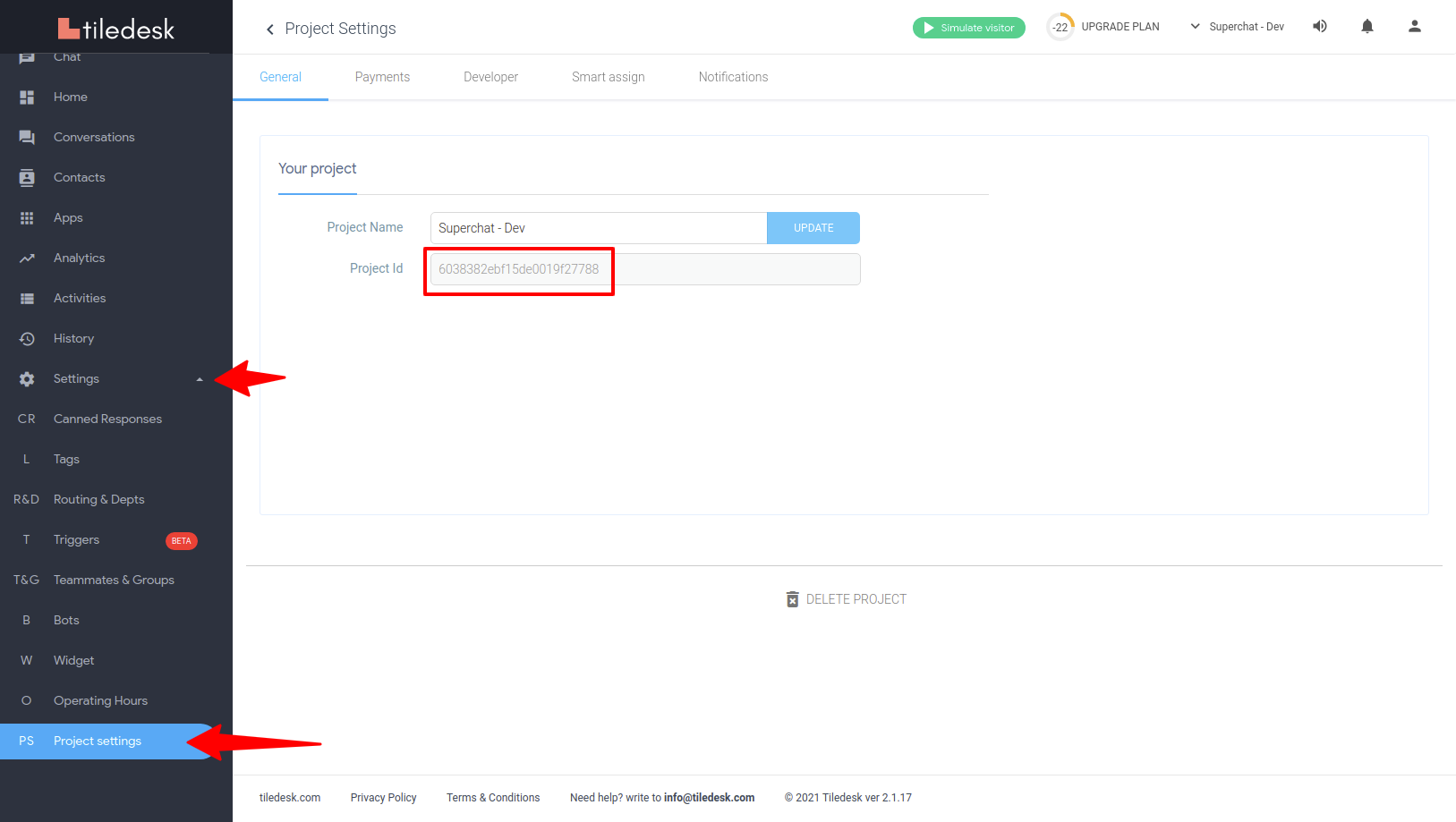
Generate a shared key.
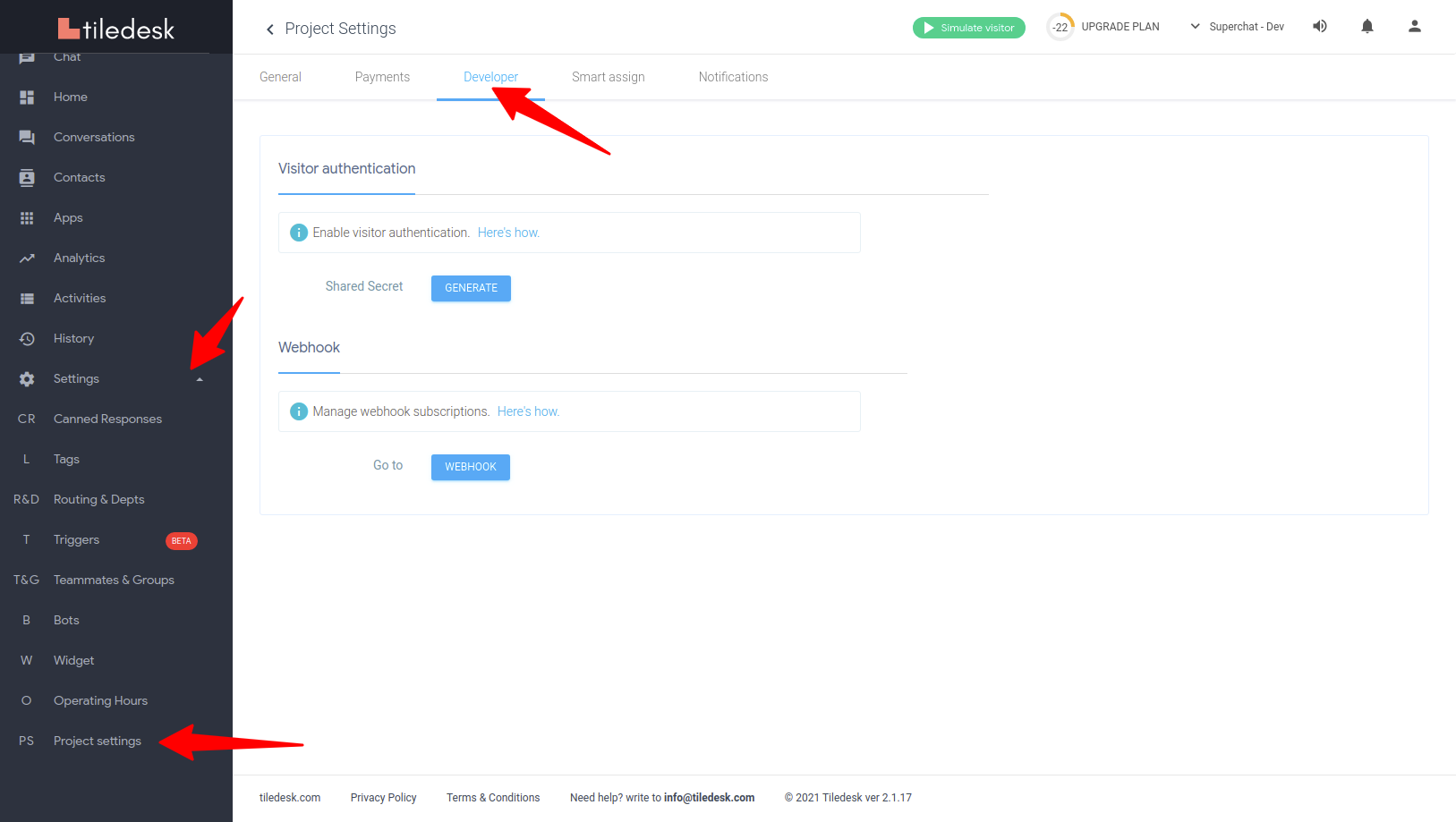
- Go to the developers tab.
- Generate a
shared key.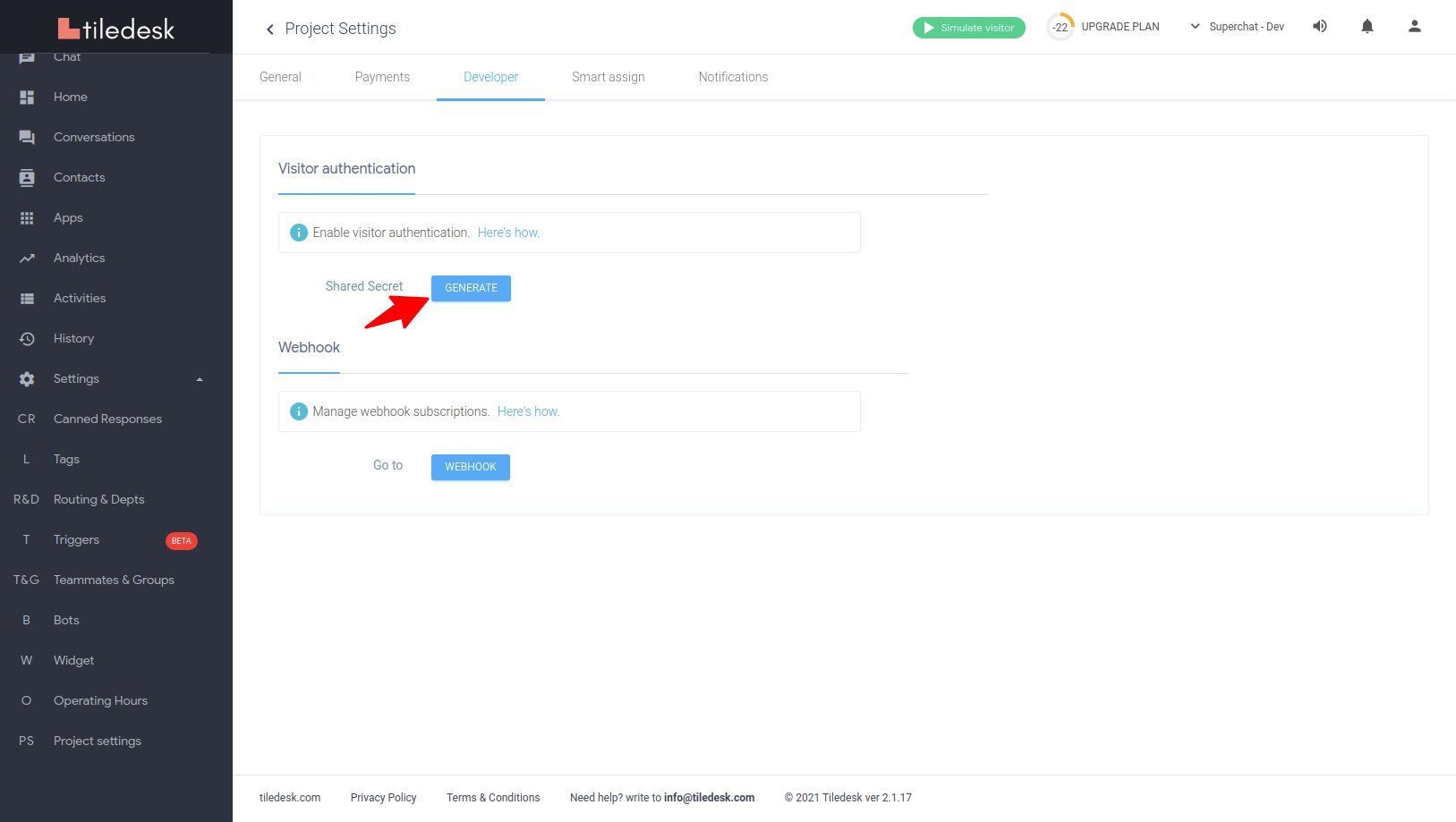
- After the key is generated, make a copy of it for later use.
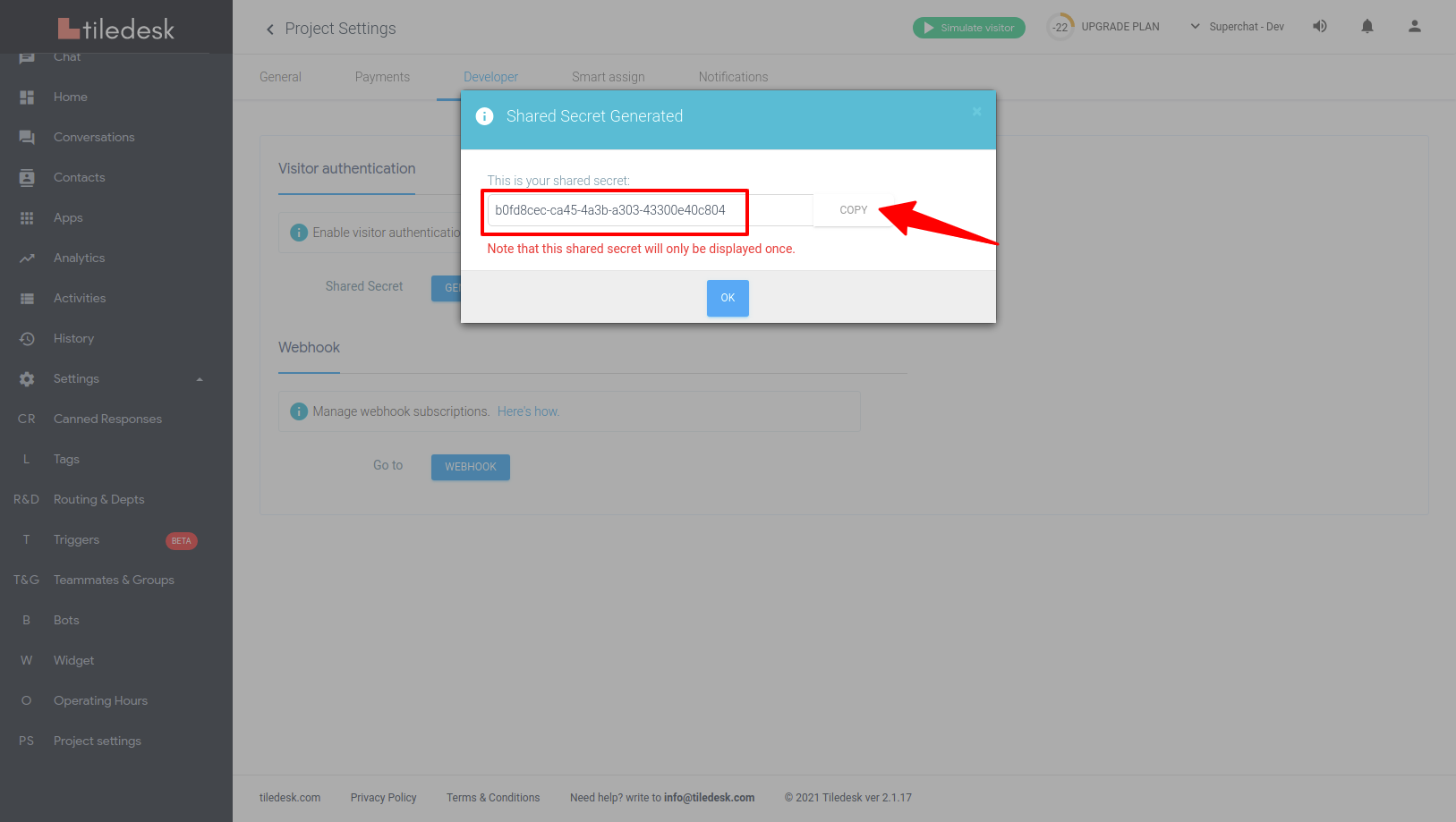
Be careful when generating the shared key if you already have a working integration
Every time a key is generated, the previous one will be invalidated.
Thus, if you generate a new key after configuring Superchat to use it, you will need to reconfigure Superchat. Otherwise, the integration stops working.